> ## Documentation Index
> Fetch the complete documentation index at: https://context7-docs-enterprise-library-access.mintlify.site/llms.txt
> Use this file to discover all available pages before exploring further.
# Library Access Control
> Restrict which libraries each user can query over the MCP and API, based on their SSO groups or individual grants.
By default, every signed-in user can query every library indexed on your instance. Library access control lets you lock specific libraries down so only the right people can reach them. This is useful when you index a repository that only one team has access to in your source control, and you want that boundary to carry over to Context7.
Access is decided per library. A library is either open to everyone or restricted to a set of principals: SSO groups, individual users, or both. Admins always have access to every library.
Group-based access relies on the group claim from your identity provider, so it works when your users sign in through SSO. See [OIDC SSO](/enterprise/security/oidc-sso) or [Microsoft Entra SSO](/enterprise/security/entra-sso) for setup. For password users, grant access to individual users instead.
## Manage access in one place
Open **Teamspace Settings**, go to the **Access** tab, and find the **Library Access** section. You get a table of every indexed library, its current access, and who can reach it, with the workspace default at the top. Search by name, filter to restricted libraries only, and edit any library inline.
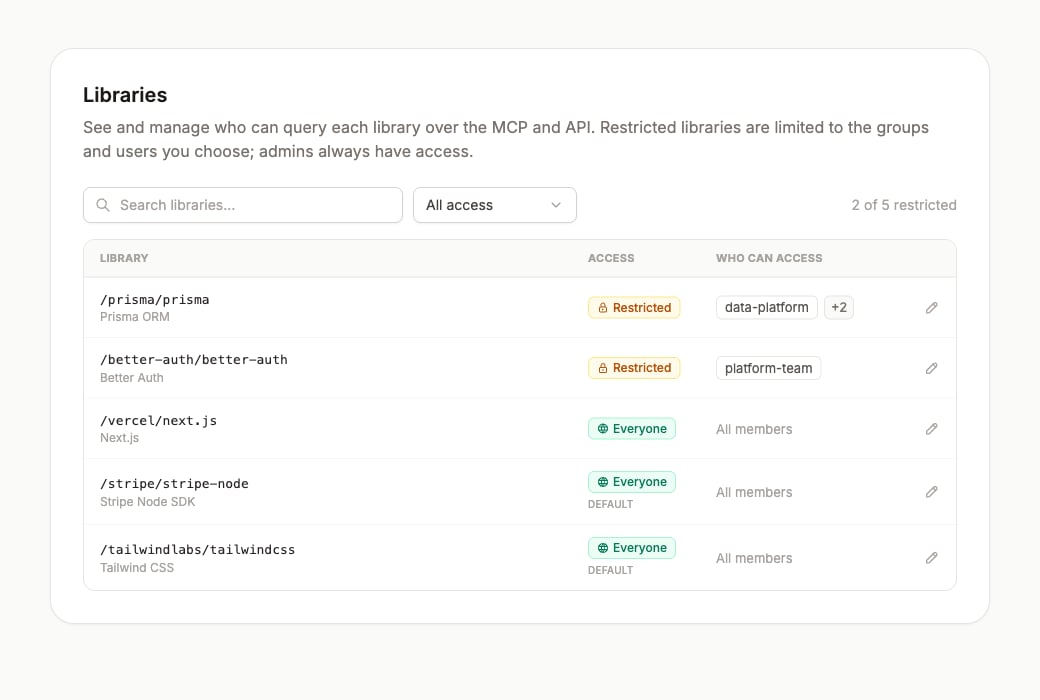 The table tells you three things at a glance:
* **Access**: whether the library is open to **Everyone** or **Restricted**. Libraries you have not configured follow the workspace default and are tagged `default`.
* **Who can access**: the groups and users on a restricted library, `All members` when it is open, or `Admins only` when it is restricted but no one has been added yet.
* **Edit**: opens the access editor for that library.
## Restrict a library
You can edit a library from the **Edit** button in the table, or from the library's own settings dialog. Both open the same controls.
Select **Restricted**, then add the SSO groups that should have access and any individual users you want to grant directly. Click **Save changes**.
The table tells you three things at a glance:
* **Access**: whether the library is open to **Everyone** or **Restricted**. Libraries you have not configured follow the workspace default and are tagged `default`.
* **Who can access**: the groups and users on a restricted library, `All members` when it is open, or `Admins only` when it is restricted but no one has been added yet.
* **Edit**: opens the access editor for that library.
## Restrict a library
You can edit a library from the **Edit** button in the table, or from the library's own settings dialog. Both open the same controls.
Select **Restricted**, then add the SSO groups that should have access and any individual users you want to grant directly. Click **Save changes**.
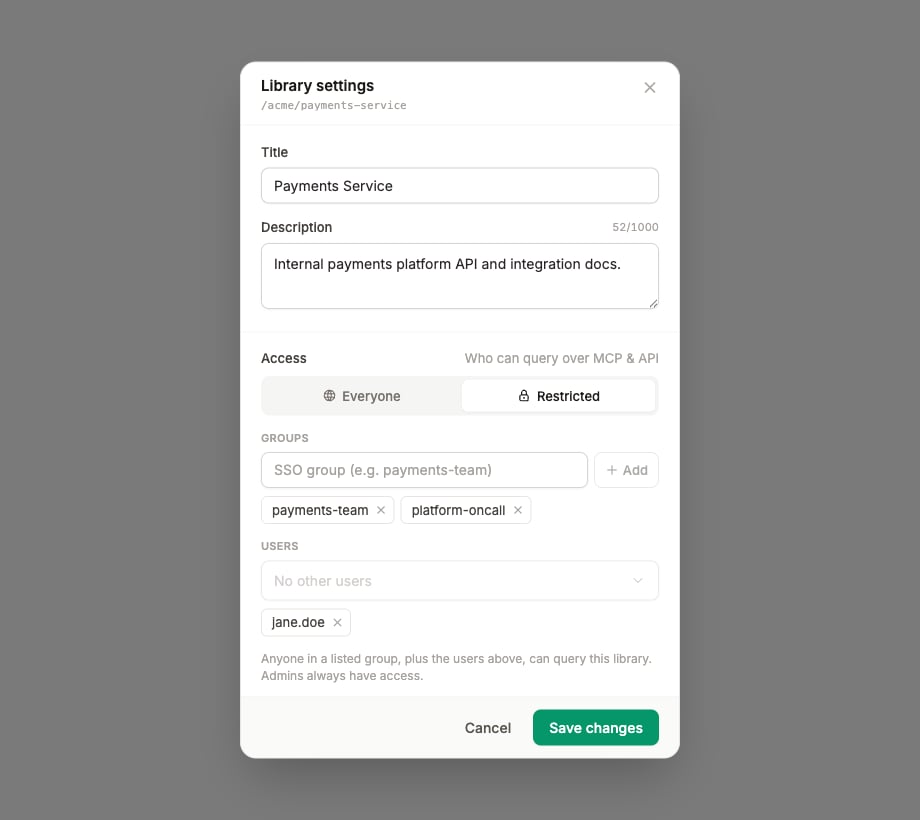 Anyone in a listed group, plus the users you added, can now query this library. Everyone else stops seeing it.
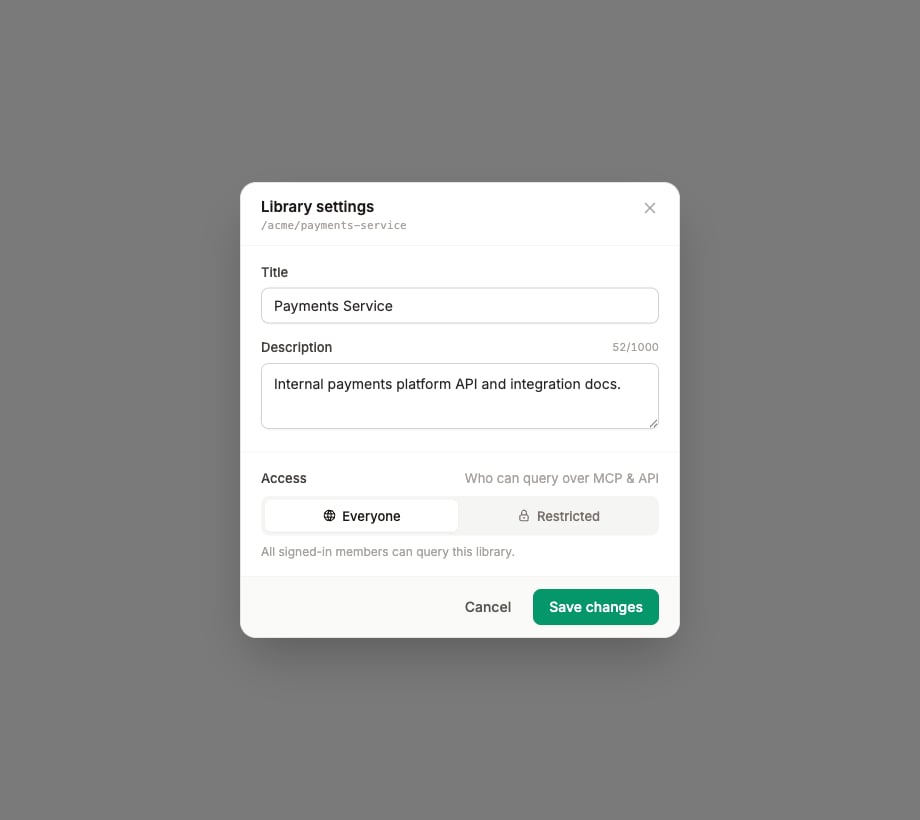
To open a library back up to the whole workspace, set its access to **Everyone**.
Anyone in a listed group, plus the users you added, can now query this library. Everyone else stops seeing it.
To open a library back up to the whole workspace, set its access to **Everyone**.
 ## Set the default for new libraries
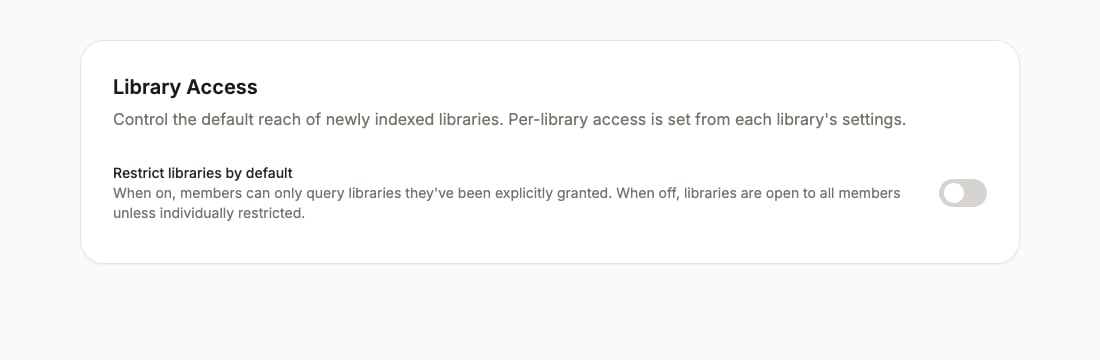
New libraries are open to everyone unless you change the workspace default. Use the **Restrict libraries by default** toggle in the **Default access** card of the Library Access section.
Turn it on to flip your instance to deny by default. Members then see only the libraries they have been explicitly granted, and each new library stays private until you grant access to it.
## Set the default for new libraries
New libraries are open to everyone unless you change the workspace default. Use the **Restrict libraries by default** toggle in the **Default access** card of the Library Access section.
Turn it on to flip your instance to deny by default. Members then see only the libraries they have been explicitly granted, and each new library stays private until you grant access to it.
 ## How it applies
Access is enforced everywhere a user reaches a library:
* **MCP**: restricted libraries are hidden from library search results, and a documentation request for a library the user cannot access returns the same "not found" response as a library that isn't indexed. Restricted libraries can't be told apart from ones that don't exist.
* **API**: the same filtering applies to library search and documentation requests made with a personal API key.
* **Dashboard**: members only see the libraries they can access in their library list.
Admins are never restricted. They see and can query every library, which is also how they manage access in the first place.
## How it applies
Access is enforced everywhere a user reaches a library:
* **MCP**: restricted libraries are hidden from library search results, and a documentation request for a library the user cannot access returns the same "not found" response as a library that isn't indexed. Restricted libraries can't be told apart from ones that don't exist.
* **API**: the same filtering applies to library search and documentation requests made with a personal API key.
* **Dashboard**: members only see the libraries they can access in their library list.
Admins are never restricted. They see and can query every library, which is also how they manage access in the first place.